Improving browser game performance.
Browser games are fill-rate bound more often than they are CPU bound, which means the fix is usually pixels and background load, not a faster computer. These nine steps are ordered by how much they typically help per minute of effort. Most people who work through them find the second one is worth more than all the others combined.
Updated October 25, 2026 · 9 sections · no download required
1. Zoom the browser out
Ctrl and minus, or Cmd and minus on macOS. At 80% the browser paints roughly a third fewer pixels than at 100%, and games like the classic shooter ports respond immediately. It is free, instant and reversible.
The same trick fixes readability in the other direction: set zoom to 125% for a port that renders its interface at 640×480. Zoom scales output; it does not change the game's internal resolution.
2. Check hardware acceleration
Chrome and Edge expose this at chrome://gpu. Search for WebGL and check whether it reports hardware or software. Software rendering is the single most common cause of a browser game that runs but feels terrible, and it is also easy to miss because everything still works — just slowly.
- Open chrome://gpu in Chrome or Edge.
- Find the WebGL feature status line.
- "Software only" means your GPU is not being used at all.
- Update your graphics driver, then reload the game.
3. Count your tabs
A tab with a video call, a music player and a live document can consume the entire GPU budget. Background tabs are throttled by the browser, so an "idle" game may be running at a fraction of its intended speed. Chrome's own task manager at Shift+Esc shows which tab is actually using the CPU — it is more accurate than the system task manager for per-tab load.
On a laptop, this matters more than on a desktop: the thermal budget is shared and a busy fan is a real limit.
4. Lower your display scaling
On a 4K monitor set to 200% scaling, the browser still renders at a high physical resolution. Dropping the operating system scaling to 100% cuts the pixel count dramatically and is the fix for ports of 1990s engines on a modern high-DPI screen.
The trade is a small, sharp UI. For a game, that is a good trade.
5. Disable extensions for the session
Ad blockers, script modifiers, colour filters and productivity overlays all inject into the page. Several of them touch every frame. Open a private or guest window, or use a second browser profile with no extensions, and compare.
Note that some ad-supported hosts behave oddly in private windows, so if the game refuses to start there, test extensions one at a time instead.
6. Stop the laptop from sleeping and throttling
Windows power saver mode caps performance; macOS reduces it on battery. Plug in, and set the power plan to performance or "best performance". On a laptop this is frequently the difference between 30 and 60 frames per second on the same machine.
Related: if a game freezes when you switch applications, that is the browser throttling a background tab, not a performance problem. Keep the tab visible.
7. Check the refresh rate
A game locked to 60 frames on a 144 Hz display can look less smooth than the same game at 60 on a 60 Hz display, because of how frame pacing interacts with the compositor. If a game feels juddery rather than slow, cap the frame rate to your refresh rate with the browser's frame-rate limiter in the flags menu.
This is a feel problem rather than a speed problem, and it only matters on high-refresh displays.
8. Use a fresh, local cache
If a game used to run fine and now stutters, the cause is more often a corrupt cached module than a machine problem. Clear site data for that one origin — not your whole browser — and reload.
Some projects ship a service worker that caches aggressively and can serve a stale build after an update. Clearing site data fixes that specific case.
9. Know when it is the project, not you
Some community ports are simply heavier than they should be, and some are running on a single-threaded server. If the frame rate is low on a fast machine with no other tabs, in two browsers, and on two networks, the problem is the build. There is nothing to optimise on your side.
Report it if the project accepts reports, and move on to a lighter entry. This index labels which entries are heavy — the classic Wolfenstein port is the usual example.
Bottom line
Zoom out, check hardware acceleration, close tabs, lower display scaling, disable extensions, plug in, and only then suspect the game. If none of that changes anything and the same slowness follows you across browsers and devices, the build is the bottleneck.
Questions about improving browser game performance
Why is my browser game slow even though my computer is fast?+
Browser games are usually fill-rate bound, meaning they are limited by how many pixels the browser paints rather than by processing power. Zooming the browser out, lowering display scaling and checking hardware acceleration at chrome://gpu fix most of these cases.
How do I check if hardware acceleration is on?+
Open chrome://gpu in Chrome or Edge and look at the WebGL feature status. If it reads "Software only", the game is being rendered by the CPU. Update your graphics driver and make sure hardware acceleration is enabled in browser settings.
Does closing browser tabs actually improve game performance?+
Yes, materially. A video call, a music player or a live document can use the entire GPU budget, and background tabs are throttled so an idle game may run at a fraction of its speed. Chrome's task manager at Shift+Esc shows per-tab CPU use.
My game used to run smoothly and now it stutters — what changed?+
Most likely a corrupt cached module or a stale service worker. Clear site data for that one origin through the padlock icon in the address bar and reload. Clearing all browser data also works but is a heavier hammer.
Open the game.
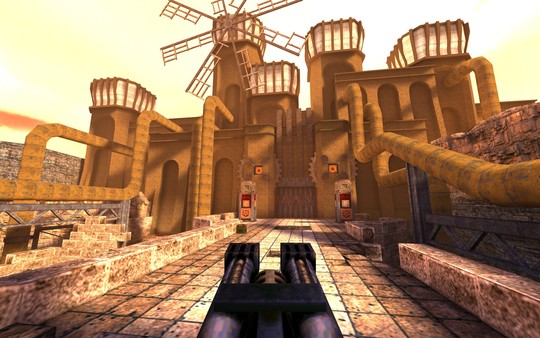
Quake
Fast arena combat through a community browser project; available content may differ from the full game.
Check project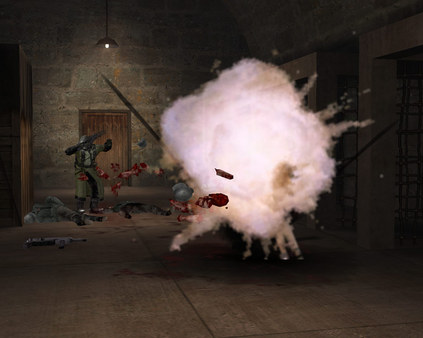
Return to Castle Wolfenstein
A browser preservation project for the Wolfenstein shooter.
Check project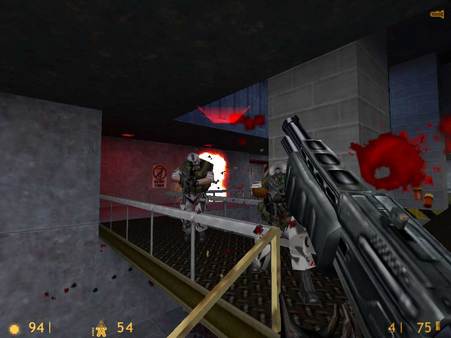
Half-Life Web
A community browser launcher for Half-Life. Read its requirements before expecting the full campaign.
May need game files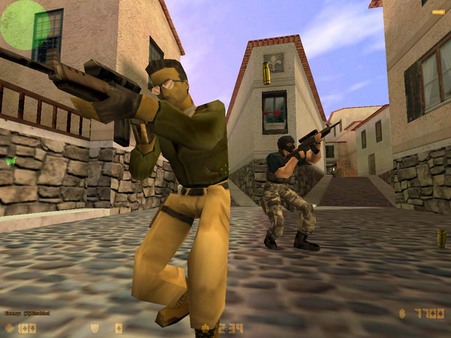
Half-Life / CS 1.6
WebXash runs compatible game data in the browser; full content requires files you own.
Own files for full game